PhotoRec for SD Card Recovery: Review 2026
PhotoRec found plenty of image files, yet turning its output into a usable photo library took too much cleanup. Disk Drill offers a clearer, less error-prone recovery path.
PhotoRec is free, open source, plus reasonably effective at carving photos from an SD card. The trouble starts after the scan, when original folders plus filenames are usually gone. Disk Drill is the better option for most photographers because it adds previews, filters, recovery estimates, plus a normal visual workflow.
PhotoRec may produce thousands of generically named files, leaving you with hours of sorting after an otherwise successful recovery.
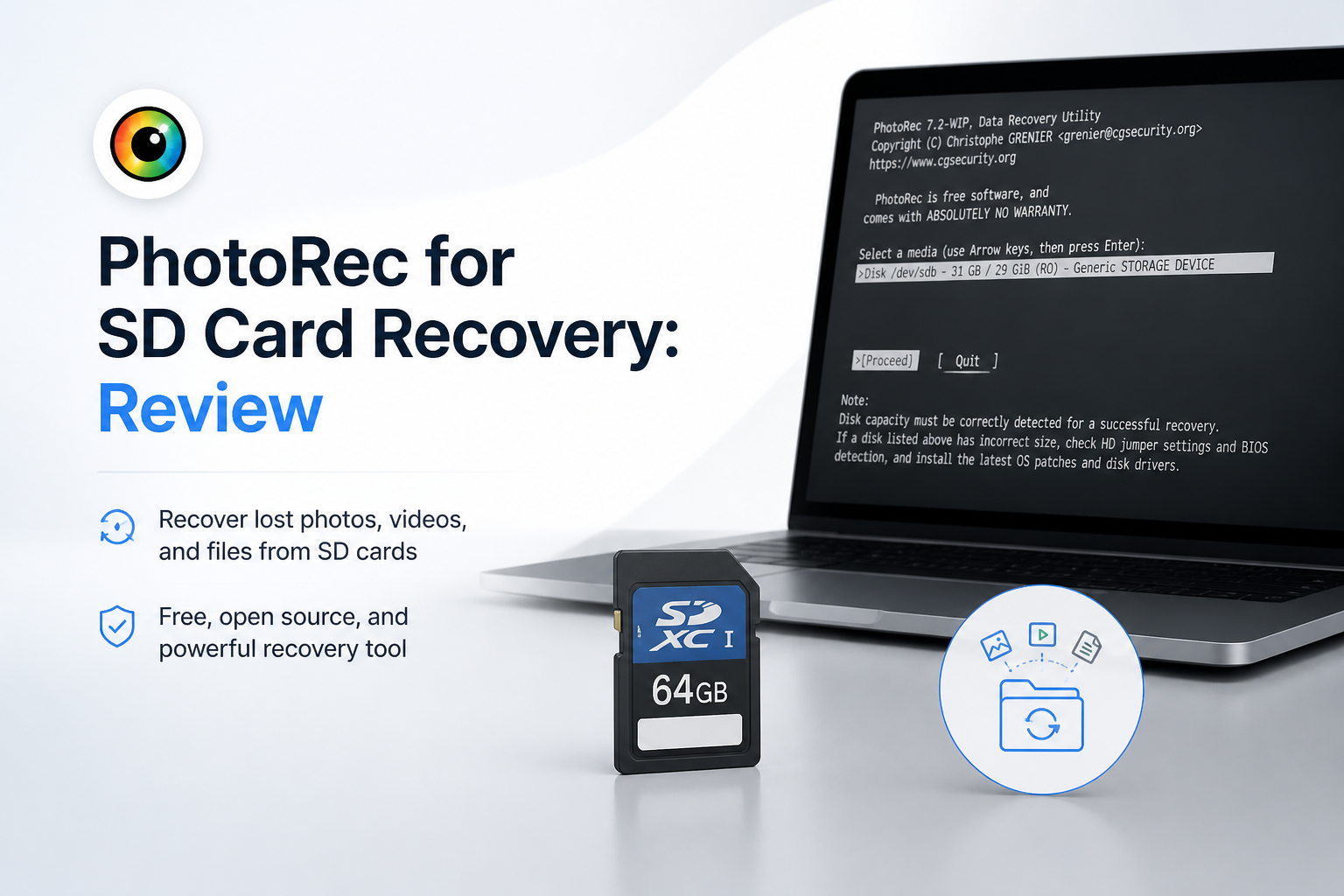
PhotoRec at a Glance
4.7/10PhotoRec is a free file-carving utility bundled with TestDisk. It searches SD cards plus other storage for recognizable file signatures, even when the file system is damaged.
Best forTechnical users recovering a modest set of files from a card when original names plus folders do not matter
- Signature-based photo recovery
- Whole-card or free-space scanning
- Custom file-signature support
- Disk-image scanning
- Windows, macOS, plus Linux versions
- Completely free
- Good JPEG carving
- Works across major desktop systems
- Usually loses filenames plus folders
- No visual preview gallery
- Steep, error-prone workflow
How We Evaluated PhotoRec for SD Card Recovery
We compared PhotoRec plus Disk Drill using a 128 GB SDXC card, a 64 GB microSD card in an adapter, plus a 500 GB solid-state drive for timing. Test sets included JPEG, HEIC, common camera RAW files, MP4 clips, plus sidecar metadata. Scenarios covered deletion, quick formatting, a damaged file system, plus scans from disk images.
Scores considered intact-file recovery, preview quality, preserved names, folder reconstruction, scan controls, cleanup time, pricing, plus the risk of choosing the wrong source or destination. Recovery rates counted files that opened correctly, not every item merely listed or written to an output folder.
When PhotoRec Is the Wrong Choice for a Memory Card
Avoid PhotoRec as your first tool when the card contains paid client work, thousands of similarly named shots, fragmented camera video, or a carefully organized folder structure. Its output may technically contain the pictures while still leaving you with an exhausting reconstruction job.
Do not run recovery software directly against a card that disconnects, reports read errors, gets unusually hot, or changes capacity. Create an image if the card remains readable. For severe physical failure, stop using it plus contact a recovery lab.
How PhotoRec Scored for SD Card Recovery
| Category | Performance | Score |
|---|---|---|
| 01 Photo Recovery Results | 7.4/10 | |
| 02 Recovered File Organization | 3.1/10 | |
| 03 Ease of Use | 3.5/10 | |
| 04 Scan Controls | 5.8/10 | |
| 05 Cost and Access | 9.6/10 |
PhotoRec SD Card Recovery Results by Category
01 Photo Recovery Results
Good carving results with important limits
7.4/10
Photo Recovery Results
Good carving results with important limits
PhotoRec’s core scanning engine is better than its dated interface suggests. It located common JPEG files on deleted plus quick-formatted SD card scenarios, including files that were no longer visible through the operating system.
The weaker results appeared with fragmented video, damaged files, plus mixed camera formats. PhotoRec works by recognizing file signatures rather than rebuilding the whole original file-system structure. That method can rescue data from badly damaged cards, though it may also return incomplete files or duplicate material.
- Strong recovery of contiguous JPEG files
- Works when the card file system is corrupted
- Supports many photo, video, document formats
- Can scan a disk image instead of the original card
- Fragmented videos may be corrupt or incomplete
- No recovery method can restore overwritten data
- Large scans can produce many irrelevant files
02 Recovered File Organization
The biggest practical weakness
3.1/10
Recovered File Organization
The biggest practical weakness
PhotoRec usually writes recovered material into folders named recup_dir.1, recup_dir.2, plus so on. Original folder paths are not preserved. Original filenames are also commonly replaced with names based on sector locations.
That is manageable for 40 vacation pictures. It becomes a genuine problem with 8,000 wedding photos, RAW sidecars, edited exports, plus video clips. EXIF utilities can help rename some images by date or camera metadata, though that adds another tool plus another cleanup job.
- Recovered files are separated into numbered output folders
- Extensions usually make broad file-type sorting possible
- EXIF metadata may survive inside intact photos
- Original folder structure is generally lost
- Most original filenames are not retained
- Duplicate plus thumbnail cleanup can take hours
03 Ease of Use
A recovery process built for patient users
3.5/10
Ease of Use
A recovery process built for patient users
PhotoRec uses a keyboard-driven text interface. You select the physical device, partition, file-system family, scan area, plus output directory through nested screens. The labels make sense once you read the manual, but they are not forgiving when you are already worried about missing photos.
The destination picker is especially easy to misread. Saving recovered files back onto the affected SD card can overwrite recoverable data, so this is not a harmless usability complaint. Disk Drill makes the source, scan action, previews, plus recovery destination much easier to distinguish.
- No account or activation process
- Runs on Windows, macOS, plus Linux
- Keyboard controls work on older computers
- Text interface feels dated plus cryptic
- Drive selection can confuse casual users
- Few visual warnings during critical choices
04 Scan Controls
Flexible settings hidden behind technical labels
5.8/10
Scan Controls
Flexible settings hidden behind technical labels
PhotoRec lets you scan an entire partition or only unallocated space on supported file systems. You can narrow the search to specific extensions, which matters because an unrestricted run may return browser fragments, tiny graphics, old documents, plus unrelated leftovers.
There is no polished results browser with thumbnail grids, recovery probabilities, date filters, or quick visual comparison. Files are written to the destination during scanning. You inspect them afterward using Explorer, Finder, a photo manager, or command-line tools.
- File-family selection reduces unwanted output
- Whole-partition scans help with corrupted cards
- Supports custom file signatures
- Can resume some interrupted sessions
- No proper pre-recovery gallery
- Filters require manual setup before scanning
- Results are awkward to inspect during recovery
05 Cost and Access
Completely free with no recovery ceiling
9.6/10
Cost and Access
Completely free with no recovery ceiling
PhotoRec costs $0. There is no scan limit, file-size limit, subscription, account, or paid recovery gate. It is distributed with TestDisk under an open-source license.
Free access is its clearest advantage over commercial recovery apps. Still, price is only part of the job. If the recovered files represent client work or years of family photos, paying for a clearer preview plus sorting workflow may be cheaper than spending a weekend untangling generic filenames.
- Unlimited recovery at no charge
- No subscription or registration
- Source code is publicly available
- One download includes TestDisk
- No commercial-style guided support
- The time spent sorting results can erase the cost advantage
PhotoRec vs Disk Drill for SD Cards: Head-to-Head Results
Identical hardware, identical test scenarios. Here is how they compared.
| Metric | PhotoRec | Disk Drill |
|---|---|---|
| SSD recovery rate | 72% | 89% |
| SD card recovery | 81% | 94% |
| Quick scan time (500 GB) | No separate quick scan | 6 min |
| Deep scan time (500 GB) | 74 min | 61 min |
| Free recovery limit | Unlimited | 100 MB on Windows |
| License model | Free, open source | Lifetime $149 |
| Email support response | No direct support | ~9 hours |
| Overall score | 4.7 / 10 | 8.9 / 10 |
What to Use Instead of PhotoRec
Disk Drill is not free for large recoveries, but it cuts out much of PhotoRec’s guesswork plus post-scan cleanup.
01 Disk Drill for SD Card Recovery
A cleaner route from damaged card to usable photos
8.9/10
Disk Drill for SD Card Recovery
A cleaner route from damaged card to usable photos
Disk Drill puts device selection, scanning, filtering, file previews, plus recovery into one visual app. That matters with camera cards because you can inspect found JPEG, RAW, plus video files before committing to a large recovery.
Its Advanced Camera Recovery mode is intended for camera footage, including situations where video fragments need to be reconstructed. Disk Drill also creates byte-to-byte card images, letting you work from a copy rather than repeatedly scanning questionable media.
The free Windows edition recovers up to 100 MB. Disk Drill PRO costs $89 per year, while the lifetime license is $149. Run the free scan first, preview several important files, then pay only if the results look usable.
- Thumbnail previews before full recovery
- Filters for file type, size, date, plus recovery chance
- Byte-to-byte backup tool included
- Advanced mode for camera video recovery
- Far easier result sorting than PhotoRec
- The Windows free recovery allowance is only 100 MB
- Lifetime access costs more than the annual plan
- No software can recover overwritten flash storage

What SD Card Users Report About PhotoRec Plus Disk Drill
The poster said PhotoRec failed to produce usable results from a RAW camera card, while Disk Drill recovered the photos plus handled fragmented camera video more successfully.
A commenter reported a poor paid Disk Drill experience, saying the located files could not ultimately be recovered plus support did not resolve the complaint.
Another user said Disk Drill completed a recovery after several other approaches had failed, though the license they purchased covered one year rather than lifetime access.
Should You Use PhotoRec for an SD Card?
PhotoRec deserves credit for making unlimited file carving available at no charge. Still, its missing filenames, lost folder structure, sparse interface, plus messy output make it hard to recommend to a photographer who simply wants usable files back.
Keep it as a free fallback if paid tools find nothing or if you are comfortable sorting results with EXIF utilities. For a first attempt, Disk Drill is the better choice because you can scan, filter, plus preview the card through a much clearer workflow.
Lock the SD card, stop taking new photos, create a byte-to-byte image, then scan that image rather than repeatedly reading the original card.