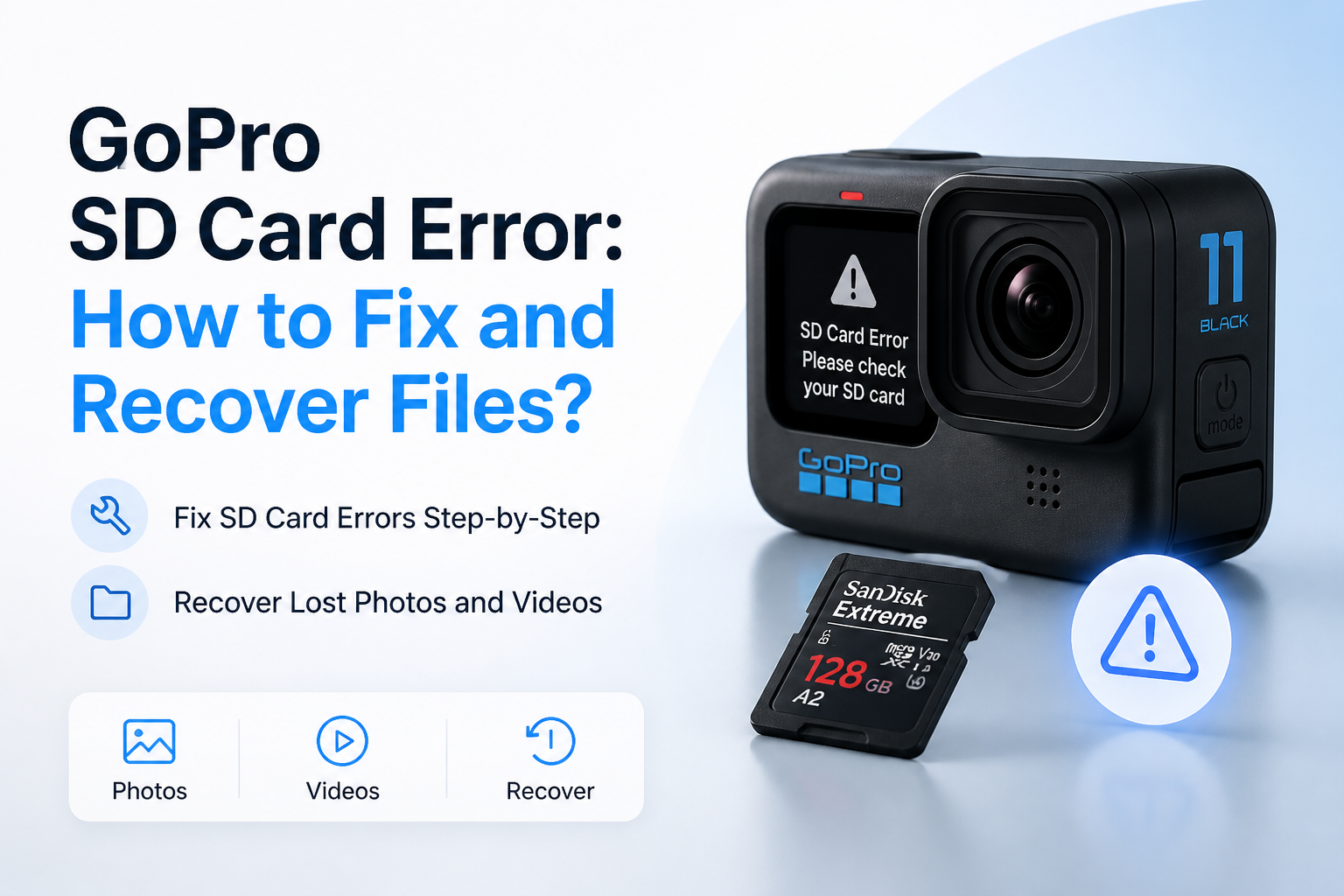
GoPro SD Card Error: How to Fix and Recover Files?
That SD card error does not always mean your footage is gone. Recover first, then work from the least destructive fix toward a clean replacement.
Stop recording to the card. Remove it from the GoPro, connect it through a card reader, then recover your footage with Disk Drill before repairing or formatting anything. Once the files are safe, test the contacts, file system, format, plus card compatibility.
Do not accept a format prompt if you still need the footage. New recordings, repairs, or formatting may overwrite recoverable data. Save recovered files to another storage device, never back to the problem card.
Recover GoPro Footage Before Repair → Disk Drill
Scans microSD cards through a reader · Previews found footage before recovery · Windows plus macOS support
Top 5 Ways to Fix a GoPro SD Card Error
01 Recover GoPro Files With Disk Drill
Best first move when the card contains footage you cannot replace
~20–60 min
Recover GoPro Files With Disk Drill
Best first move when the card contains footage you cannot replace
Recover the footage before attempting repairs that could alter the file system. Disk Drill can scan a GoPro microSD card through a reader, preview found media, then save selected files to another drive.
- Turn off the GoPro, remove the microSD card, then slide it into a reliable USB card reader.
- Install Disk Drill on your computer. Do not install anything on the affected card.
- Open Disk Drill, select the physical SD card, then click Search for lost data. Use the camera-recovery option if it appears for your card.
- Filter the results by Video or Pictures. Preview several files, especially one from the start plus one from the end of a long recording.
- Select the footage you need, click Recover, then choose your computer or an external drive as the destination. Never recover onto the same card.

02 Reseat the Card Plus Check the Reader
Quickest fix for dirty contacts, a loose card, or an adapter problem
~5 min
Reseat the Card Plus Check the Reader
Quickest fix for dirty contacts, a loose card, or an adapter problem
A GoPro SD card error can come from poor contact rather than damaged data. This check is low risk if you keep the card dry, avoid scraping its contacts, plus skip any format prompt.
- Power the GoPro off fully before removing the microSD card.
- Inspect the card for cracks, bent edges, grime, or signs of heat. Wipe the metal contacts gently with a clean, dry microfiber cloth.
- Reinsert the card until it clicks into place, then start the camera once.
- If the error remains, connect the card to a computer with a different reader or full-size SD adapter.
- Copy every readable GoPro file to another drive before trying further repairs.
03 Repair the Card’s File System
Useful after recovery when the card mounts but reports logical errors
~10–30 min
Repair the Card’s File System
Useful after recovery when the card mounts but reports logical errors
A file-system repair can correct directory faults caused by power loss, battery removal, or an interrupted write. Run it only after copying or recovering important files because repair tools modify card structures.
- Insert the card through a reader, then confirm that it appears in Disk Management on Windows or Disk Utility on macOS.
- On Windows, open Command Prompt as administrator, note the correct card letter, then run
chkdsk E: /fwith E replaced by that letter. - On macOS, open Disk Utility, select the card rather than your internal disk, then choose First Aid.
- Let the repair finish without removing the reader or allowing the computer to sleep.
- Eject the card safely, place it back in the GoPro, then record a short test clip.
04 Format the Card Inside the GoPro
Clean reset for a readable card after all wanted footage is safely stored
~3 min
Format the Card Inside the GoPro
Clean reset for a readable card after all wanted footage is safely stored
Formatting recreates the storage structure the camera expects. It also removes access to existing files, so verify your recovered videos before starting.
- Open several recovered clips from the destination drive to confirm that they play beyond the first few seconds.
- Charge the GoPro battery or connect stable USB power so the camera cannot shut down mid-format.
- Insert the microSD card, open the camera preferences, then locate Reset, Delete, or Format SD Card, depending on the model.
- Confirm the format, then wait until the GoPro returns to its normal preview screen.
- Record a two-minute clip, stop normally, power the camera off, then play the file back.
05 Replace the Card Plus Update the GoPro
Final fix for recurring errors, slow-card warnings, or unreliable recording
~15–45 min
Replace the Card Plus Update the GoPro
Final fix for recurring errors, slow-card warnings, or unreliable recording
Recurring errors after a clean format usually point to an aging card, an unsuitable speed class, or camera software trouble. A card that fails during long or high-resolution recording should not be trusted with another important shoot.
- Check the compatibility list for your exact GoPro model, then choose a supported microSD card from a reputable seller.
- Save any remaining files from the old card, label it as unreliable, then stop using it for camera work.
- Update the GoPro through the official mobile app or the manual update process for your model.
- Insert the replacement card, format it inside the camera, then restore your preferred recording settings.
- Test the new card with the resolution, frame rate, stabilization mode, plus recording length you normally use.
When Software Cannot Safely Recover a GoPro SD Card
Skip repeated DIY scans if the card vanishes during use, becomes hot, has cracked plastic, or prevents several readers from responding. Those signs suggest an electrical or physical fault rather than a simple file-system problem.
For irreplaceable footage, store the card in a small case, note what happened, then contact a data-recovery lab. Do not bend the card, clean it with liquid, freeze it, or keep reconnecting it.
Why GoPro Videos May Recover but Refuse to Play
Long camera clips can be stored in pieces across the card. A basic file-carving tool may find an MP4 signature yet fail to rebuild every part in the proper order, leaving a file that freezes, shows a black frame, or ends early.
Preview several recovered clips before paying for recovery or erasing the card. A thumbnail alone does not prove the complete video is intact.
Choose the Right Fix for a GoPro SD Card Error
Start with recovery if the card holds footage you care about.
| Method | Best for | Time | Success rate |
|---|---|---|---|
| 1. Recover GoPro Files With Disk Drill TRY FIRST | Missing or inaccessible footage | ~20–60 min | ● 85% |
| 2. Reseat the Card Plus Check the Reader | Contact or adapter faults | ~5 min | ● 70% |
| 3. Repair the Card’s File System | Logical file-system errors | ~10–30 min | ● 62% |
| 4. Format the Card Inside the GoPro | Resetting a backed-up card | ~3 min | ● 90% |
| 5. Replace the Card Plus Update the GoPro | Recurring recording errors | ~15–45 min | ● 95% |
Which GoPro SD Card Fix Should You Try?
Recover GoPro Files With Disk Drill is the sensible first move when the card contains footage you cannot reshoot. If the files are already backed up, begin with a careful reseat, then try file-system repair or an in-camera format. Replace the card if errors return during normal recording.
After the fix, record one long test clip at your usual resolution before trusting the card on a trip, dive, race, or paid shoot.