How to Recover Files from an SD Card without Formatting?
An unreadable SD card does not always need formatting. Start with a read-only recovery scan, save recovered files elsewhere, then move to safer fallbacks if the card behaves badly.
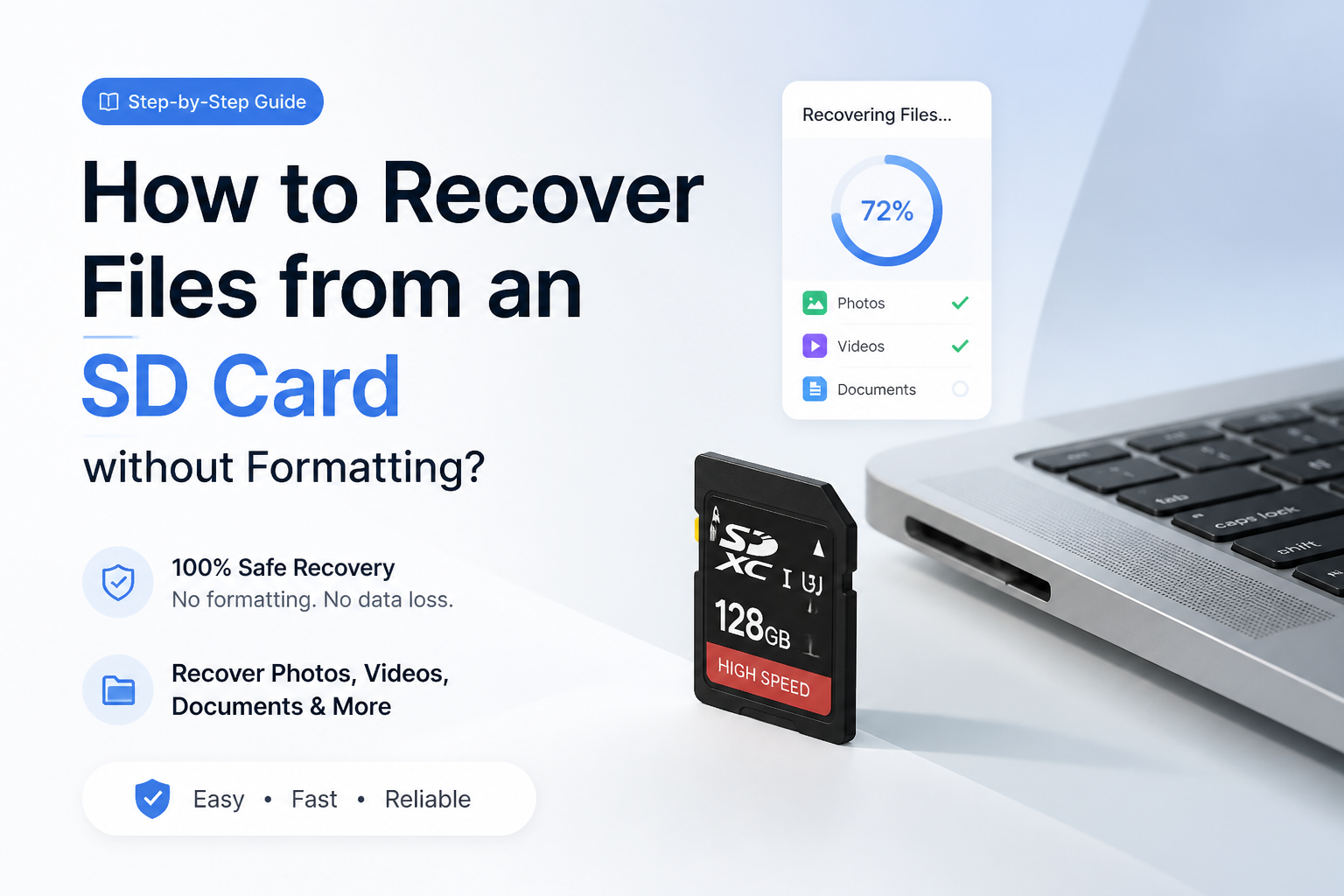
Do not format the SD card. Remove it from the original device, connect it to a computer through a reliable reader, then scan the whole card with Disk Drill. Recover files to another drive, never back onto the SD card.
Stop using the SD card now. New photos, downloads, repairs, formatting, or copied files can overwrite recoverable data. If the card clicks, heats up, disconnects repeatedly, or has visible damage, skip software scans plus contact a recovery lab.
Scan an Unreadable SD Card → Disk Drill
Scans SD, SDHC, plus microSD media · Previews found files before recovery · Available for Windows or macOS
When Software Scans Can Make SD Card Recovery Riskier
Do not keep rescanning a card that vanishes during reads, becomes hot, or slows the whole computer. Those symptoms can point to hardware failure rather than simple file-system damage.
A single image attempt may be reasonable if the card stays detected. If it cannot complete, unplug the card plus get a lab assessment before the remaining readable areas deteriorate.
What to Do When Windows Says the SD Card Must Be Formatted
Cancel the formatting prompt. Check whether the card appears with its correct capacity in Disk Management, then open recovery software without creating a new volume.
If it appears as RAW, that describes a file-system problem rather than an empty card. Scan or image it first. Repair commands should wait until the needed files exist safely elsewhere.
Choose the Right SD Card Recovery Method
Start with the least invasive option that fits the card's condition.
| Method | Best for | Time | Success rate |
|---|---|---|---|
| 1. Scan the SD Card With Disk Drill TRY FIRST | RAW, deleted, or inaccessible files | ~15–60 min | ● 82% |
| 2. Create an SD Card Image Before Scanning | Unstable cards with read errors | ~30 min–several hours | ● 76% |
| 3. Try a Different Card Reader | Connection or adapter trouble | ~5–15 min | ● 65% |
| 4. Recover Files With PhotoRec | Free file-signature recovery | ~30 min–several hours | ● 68% |
| 5. Send the SD Card to a Recovery Lab | Physical damage or vital files | ~3–14 days | ● 72% |
Top 5 Ways to Recover Files From an SD Card Without Formatting
01 Scan the SD Card With Disk Drill
Best first move when the card still appears in Windows or macOS
~15–60 min
Scan the SD Card With Disk Drill
Best first move when the card still appears in Windows or macOS
Use this route when the SD card appears in Disk Management, Disk Utility, or Disk Drill, even if its volume is RAW or unreadable. The scan reads recoverable data without asking you to format the card first.
- Remove the SD card from the camera, phone, or other device. Slide its physical lock switch to the locked position if it has one.
- Connect the card through a reliable reader. Close any message offering to format, initialize, erase, or repair it.
- Install Disk Drill on your computer's internal drive, not on the affected SD card.
- Open Disk Drill, select the whole SD card, then choose Search for lost data. Camera users can choose the camera-focused scan when it is offered.
- Review the results by file type, date, size, or folder. Preview several important photos or videos before paying for recovery.
- Select the files, click Recover, then save them to the computer or a separate external drive.

02 Create an SD Card Image Before Scanning
Safer for a card that disconnects, freezes, or reports read errors
~30 min–several hours
Create an SD Card Image Before Scanning
Safer for a card that disconnects, freezes, or reports read errors
A byte-for-byte image gives you a fixed copy to scan while the original card stays untouched. This matters when repeated reads could make an unstable card worse.
- Stop if the card becomes unusually hot, repeatedly disappears, or causes the computer to freeze.
- Prepare a healthy drive with free space equal to at least the SD card's full capacity. A 128 GB card needs roughly 128 GB for its image.
- Open Disk Drill's byte-to-byte backup tool, select the physical SD card, then save the image to the healthy drive.
- Disconnect the original card after the image completes. Keep it somewhere safe.
- Return to data recovery, attach or load the image file, then scan the image rather than the original card.
- Preview the results, select the needed files, then recover them to another healthy location.
03 Try a Different Card Reader
Quick fix when the card may be fine but the connection is not
~5–15 min
Try a Different Card Reader
Quick fix when the card may be fine but the connection is not
A worn adapter, dirty contact, weak USB hub, or incompatible reader can make a healthy card look unreadable. Test the connection before treating the card as damaged.
- Eject the card safely, then inspect its gold contacts under good light. Do not scrape them or use liquid cleaner.
- If it is a microSD card inside an SD adapter, replace the adapter first. Those adapters fail more often than many people expect.
- Connect a different reader directly to the computer instead of using a keyboard port, monitor port, or unpowered hub.
- Test the card on one other computer. Dismiss every prompt to format, initialize, or erase it.
- If the files become visible, copy the most valuable folders first to a healthy drive. Do not move files or delete anything from the card.
- Open a few copied photos, videos, plus documents before assuming the transfer worked.
04 Recover Files With PhotoRec
Free fallback when filenames plus folder structure are not essential
~30 min–several hours
Recover Files With PhotoRec
Free fallback when filenames plus folder structure are not essential
PhotoRec searches storage for recognizable file signatures rather than relying on a healthy file system. It can help with RAW or corrupted cards, though recovered files often lose their original names plus folders.
- Download PhotoRec from the official CGSecurity website, then extract it to the computer's internal drive.
- Connect the SD card through a stable reader. Never download or extract the program onto that card.
- Launch QPhotoRec for the graphical interface, then select the SD card by matching its capacity carefully.
- Choose the relevant partition. If you are unsure, scan the full card rather than writing a new partition table.
- Use File Formats to limit the scan to needed types such as JPG, CR2, NEF, MP4, MOV, PDF, or DOCX.
- Choose a destination on a separate drive, start the search, then inspect the numbered recovery folders after it finishes.
05 Send the SD Card to a Recovery Lab
Right choice for physical damage or irreplaceable files
~3–14 days
Send the SD Card to a Recovery Lab
Right choice for physical damage or irreplaceable files
Software cannot fix a cracked card, broken connector, failed controller, or damaged memory chip. A lab may access the flash memory directly, though cost rises sharply once specialist hardware is required.
- Stop powering the card if it is cracked, bent, wet, scorched, unusually hot, or no longer detected by any computer.
- Place the card in a small antistatic bag or protective plastic case. Do not use tape on its contacts.
- Contact two established labs that specifically handle SD or microSD media. Ask whether evaluation is free plus whether payment depends on successful recovery.
- Describe exactly what happened, including camera model, card capacity, prior formatting, repair commands, or software scans.
- Request a written estimate, expected turnaround, privacy terms, plus a list of recoverable files before approving costly work.
- Keep the original card after the job unless secure destruction is necessary. Verify the returned files on two separate devices.
Which SD Card Recovery Method Should You Use?
Scanning the card with Disk Drill is the sensible first move when the device remains visible to the computer. Create an image first if the card disconnects or throws read errors. Try another reader for connection trouble, use PhotoRec when you need a free fallback, or choose a lab when the card has physical damage.
Keep the original SD card unchanged until every important recovered file has opened correctly from a separate drive.